Store Integration
To sync reviews and publish responses, Rewo connects to the official review APIs using secure credentials. In Rewo, we call these integrations Providers.
This guide walks you through setting up the necessary API credentials for:
Enabling a provider will start a full sync for the corresponding store, fetching all available reviews and responses and, depending on your settings, will generate draft responses for reviews without any existing response and schedule these responses for publishing.
Make sure that you have carefully reviewed your projects Response Settings and General Settings, in particular the auto-draft and auto-publish settings.
Apple App Store
Rewo uses the App Store Connect API to fetch reviews and publish your replies. To set this up, you need to generate an API key with the appropriate permissions.
1. Generate an API Key
- Log in to App Store Connect.
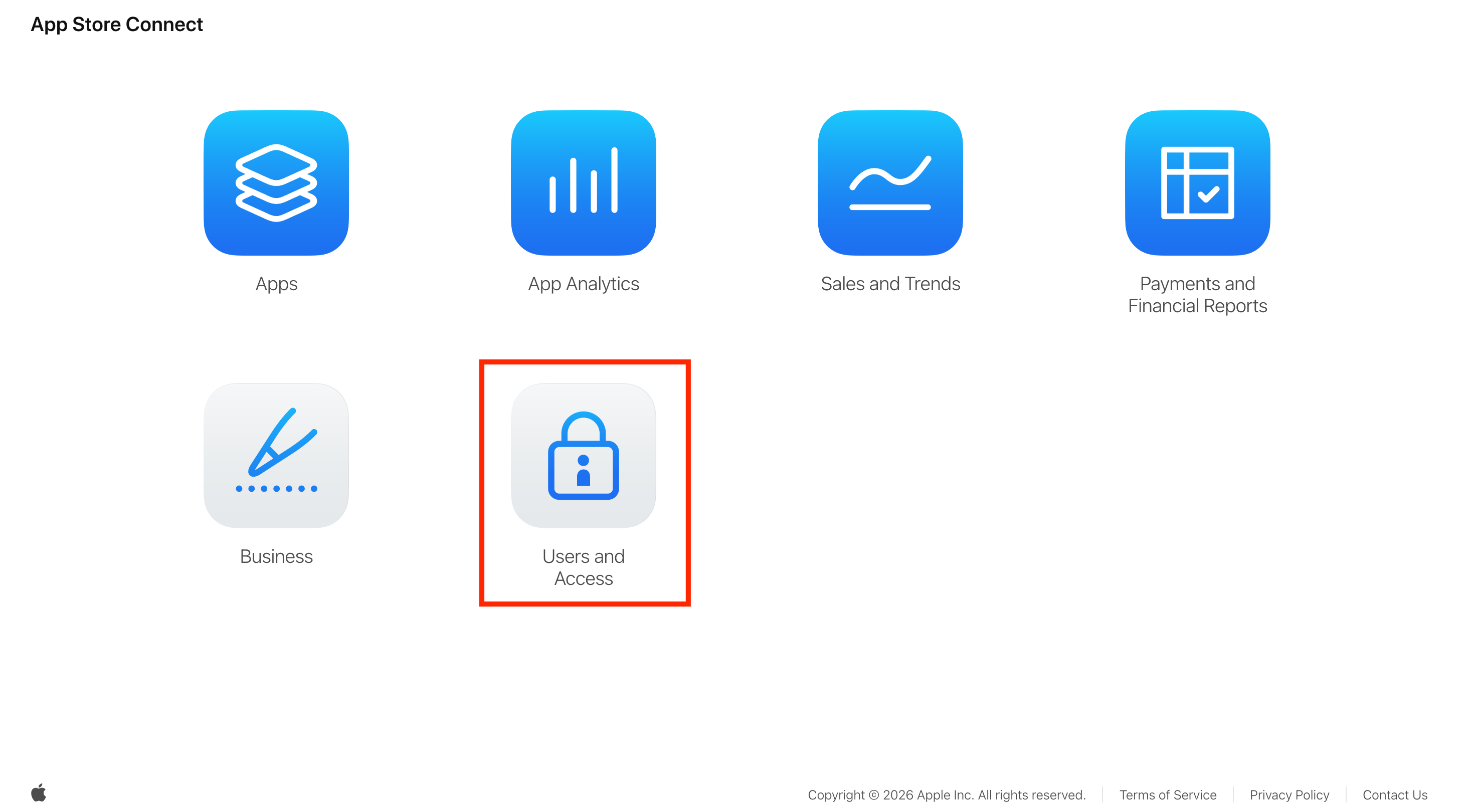
- Navigate to Users and Access and select the Integrations tab.
- Click the Plus (+) icon to create a new API Key.
- Provide a name (e.g., "Rewo Integration").
- Assign a role. To manage reviews, we recommend the Customer Support or App Manager role.
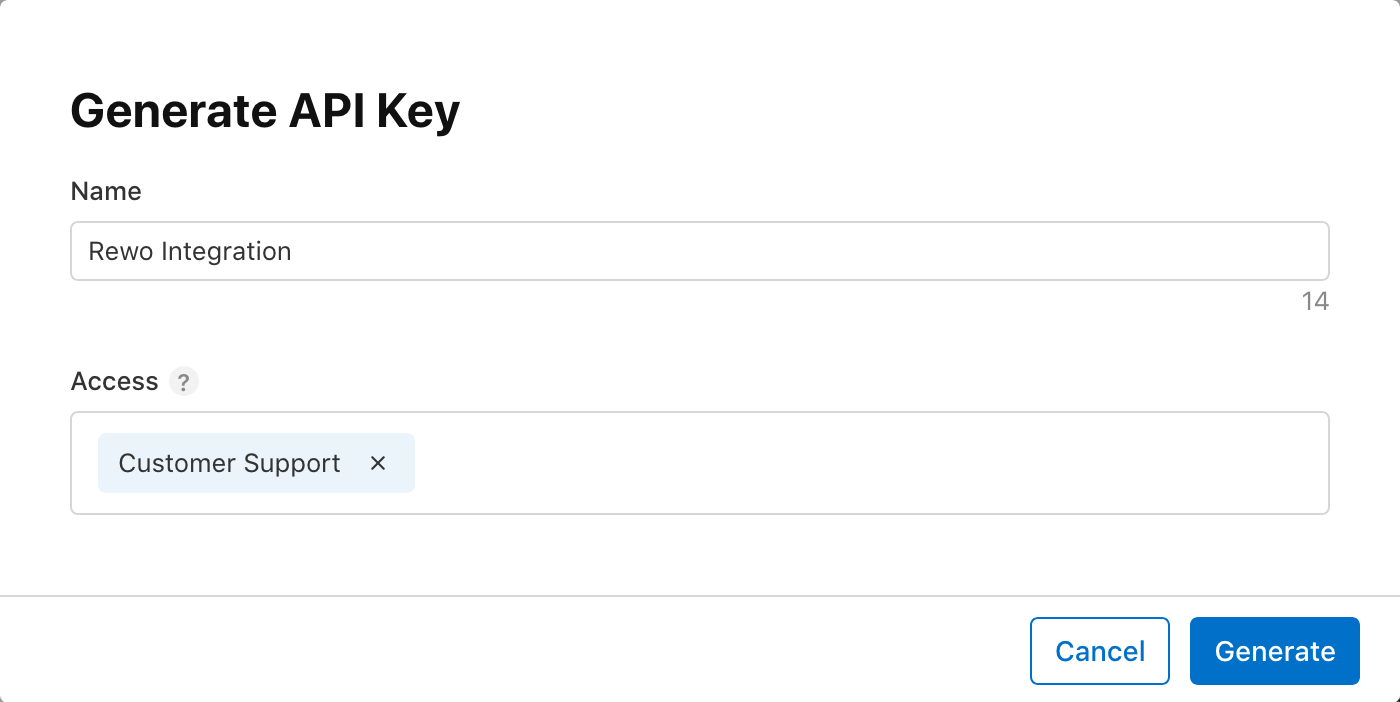
- Click Generate.
2. Collect Credentials
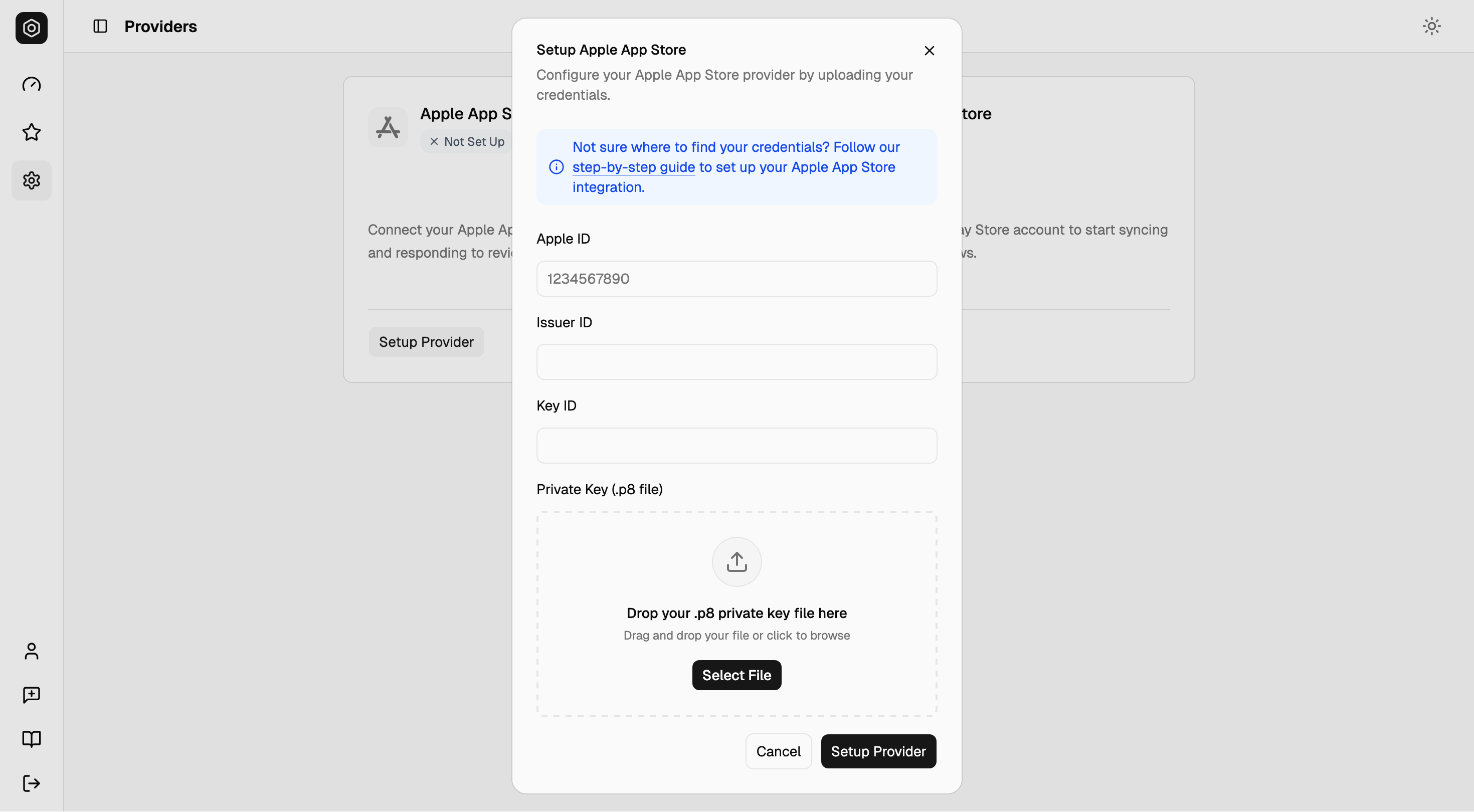
After generating the key, you will need to provide three pieces of information to Rewo:
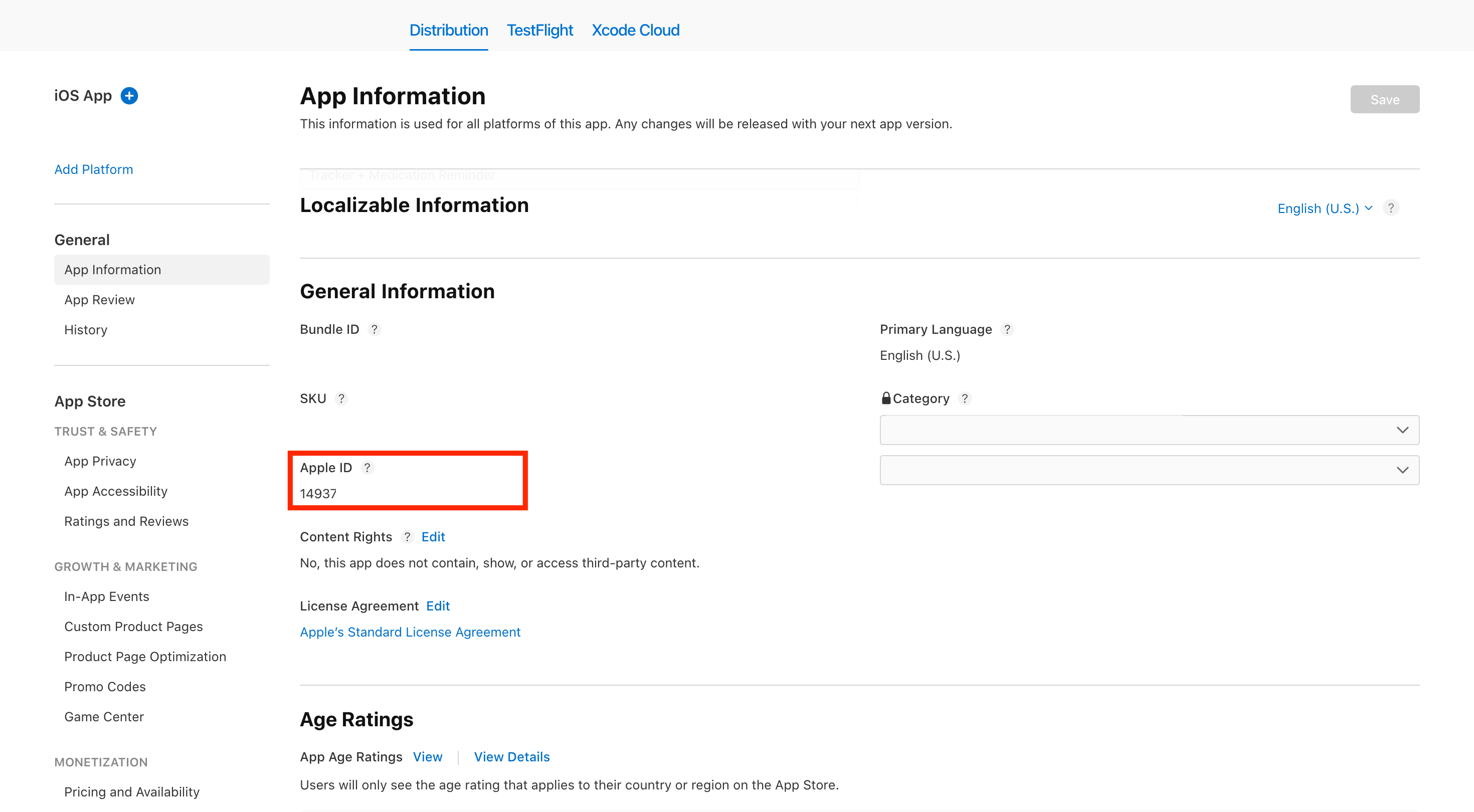
- Apple ID: The numeric ID found in the App Store Connect URL for your app or under App Information > General Information > Apple ID.
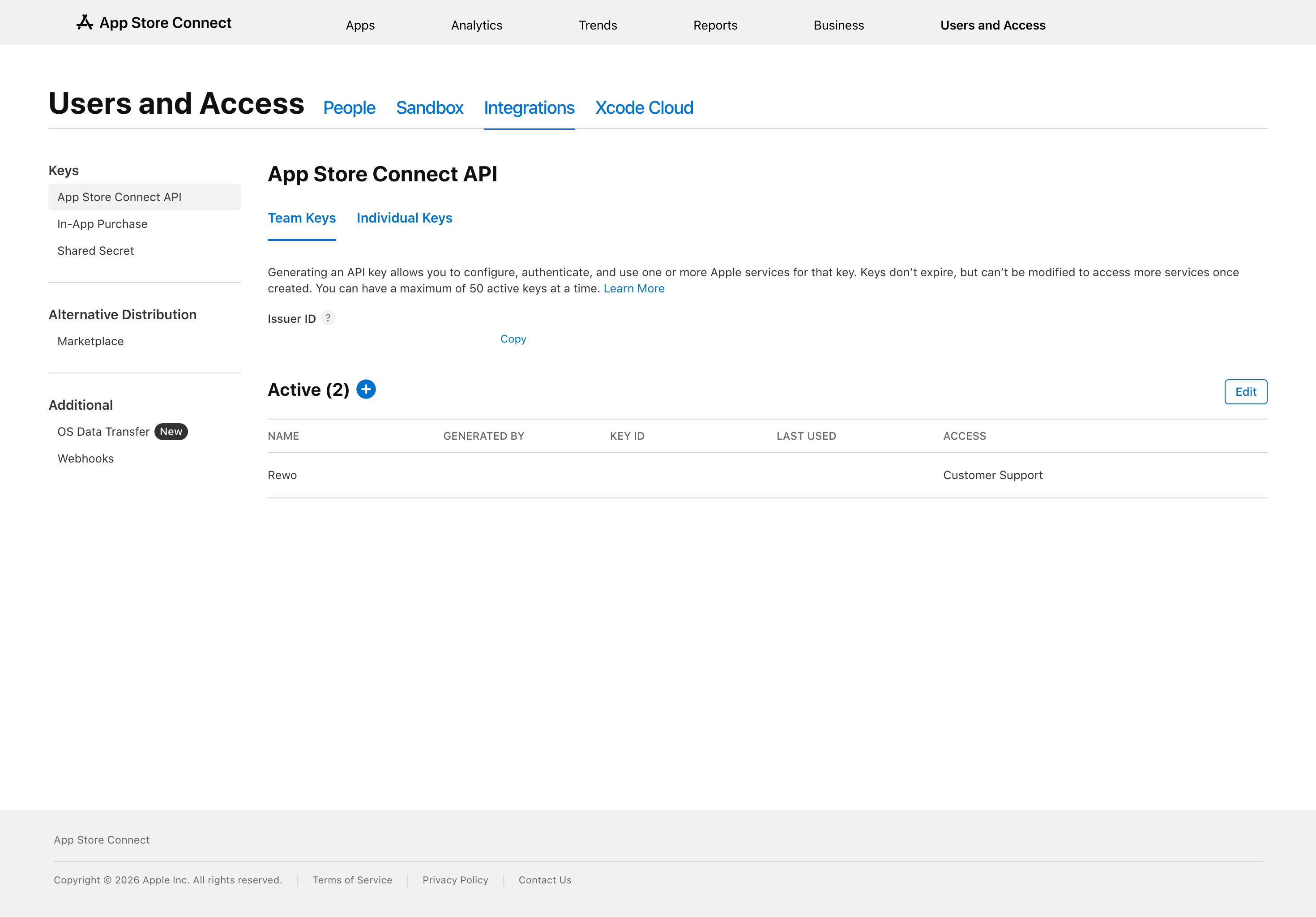
- Issuer ID: Found at the top of the API Keys page.
- Key ID: Listed next to your newly created key.
- Private Key (.p8 file): Click the Download API Key link.
You can only download the .p8 file once. Store it securely; if you lose it, you will need to revoke the key and generate a new one.
3. Setup in Rewo
Once you collected these details, enter them under Settings > Providers > Apple App Store in Rewo.
Google Play Store
Integrating the Google Play Store requires setting up a Service Account in the Google Cloud Console and linking it to your Google Play Console.
1. Enable the Google Play Developer API
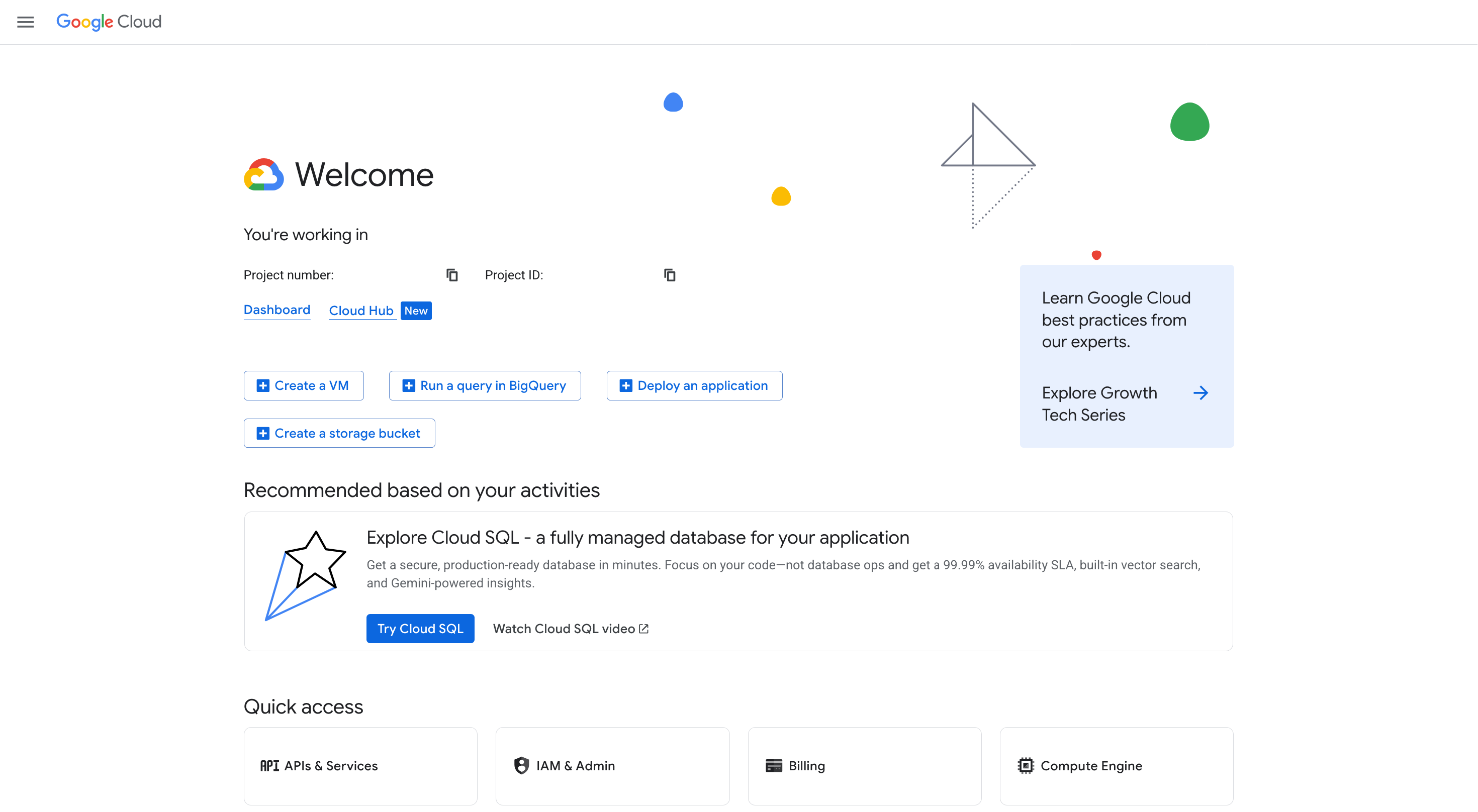
- Go to the Google Cloud Console.
- Select or create the project you want to use.
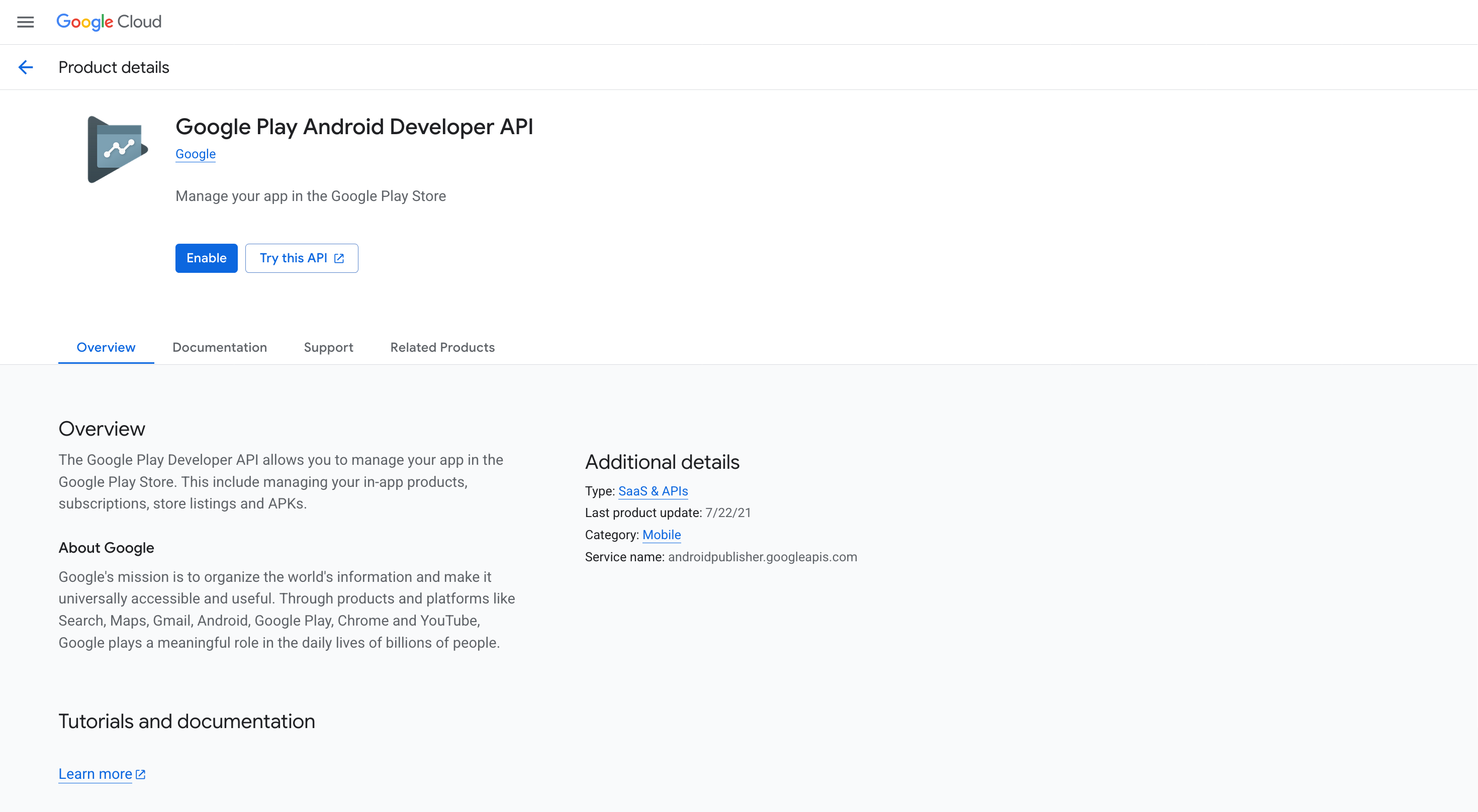
- Search for and enable the Google Play Developer API.
2. Create a Service Account
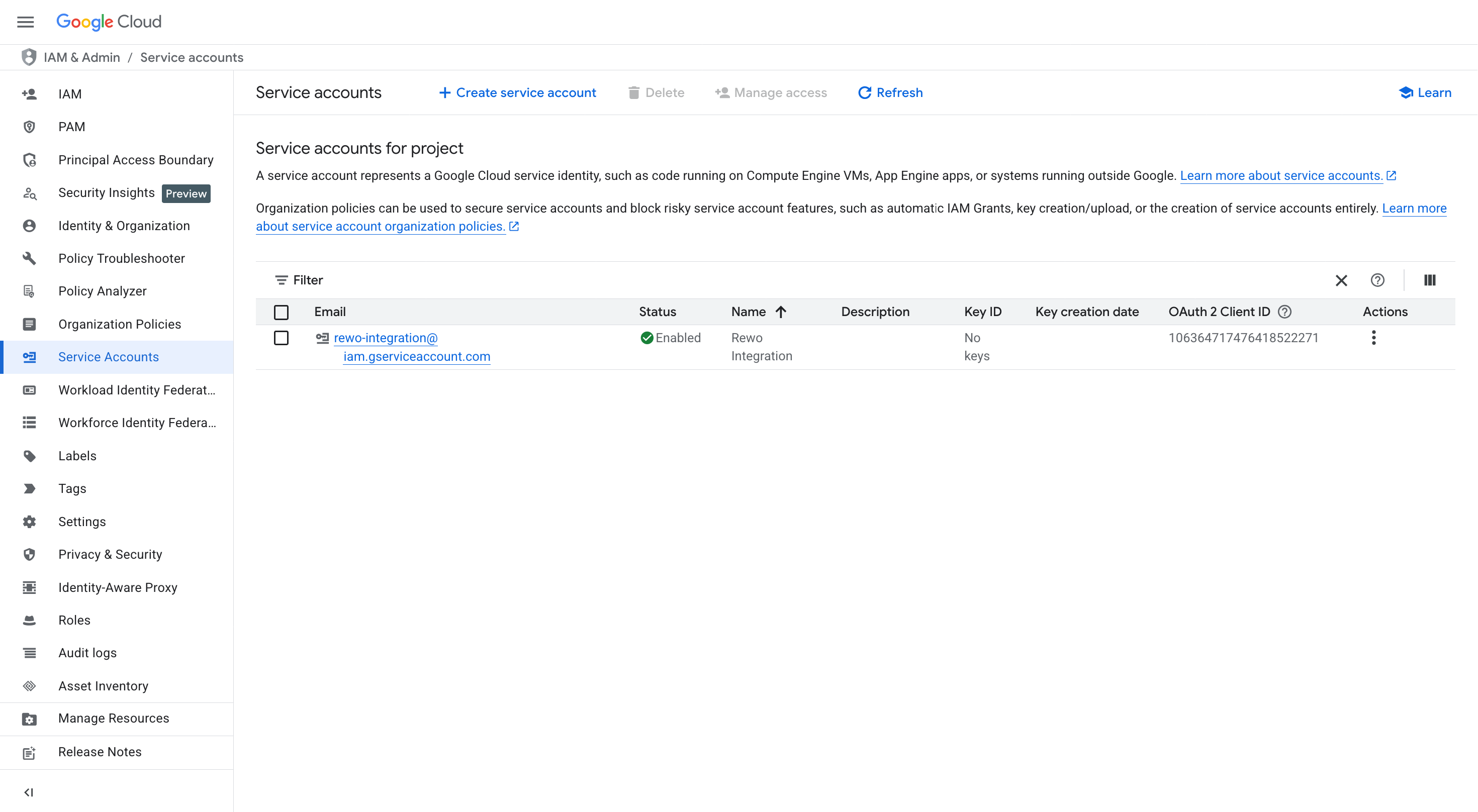
- In the Google Cloud Console, go to IAM & Admin > Service Accounts.
- Click Create Service Account.
- Give it a name (e.g., "rewo-integration") and click Create and Continue.
- In the role selection, you don't need to assign specific Cloud roles here, as permissions will be handled in the Play Console. Mark it as Done.
3. Generate a JSON Key
- From the list of Service Accounts, click on the one you just created.
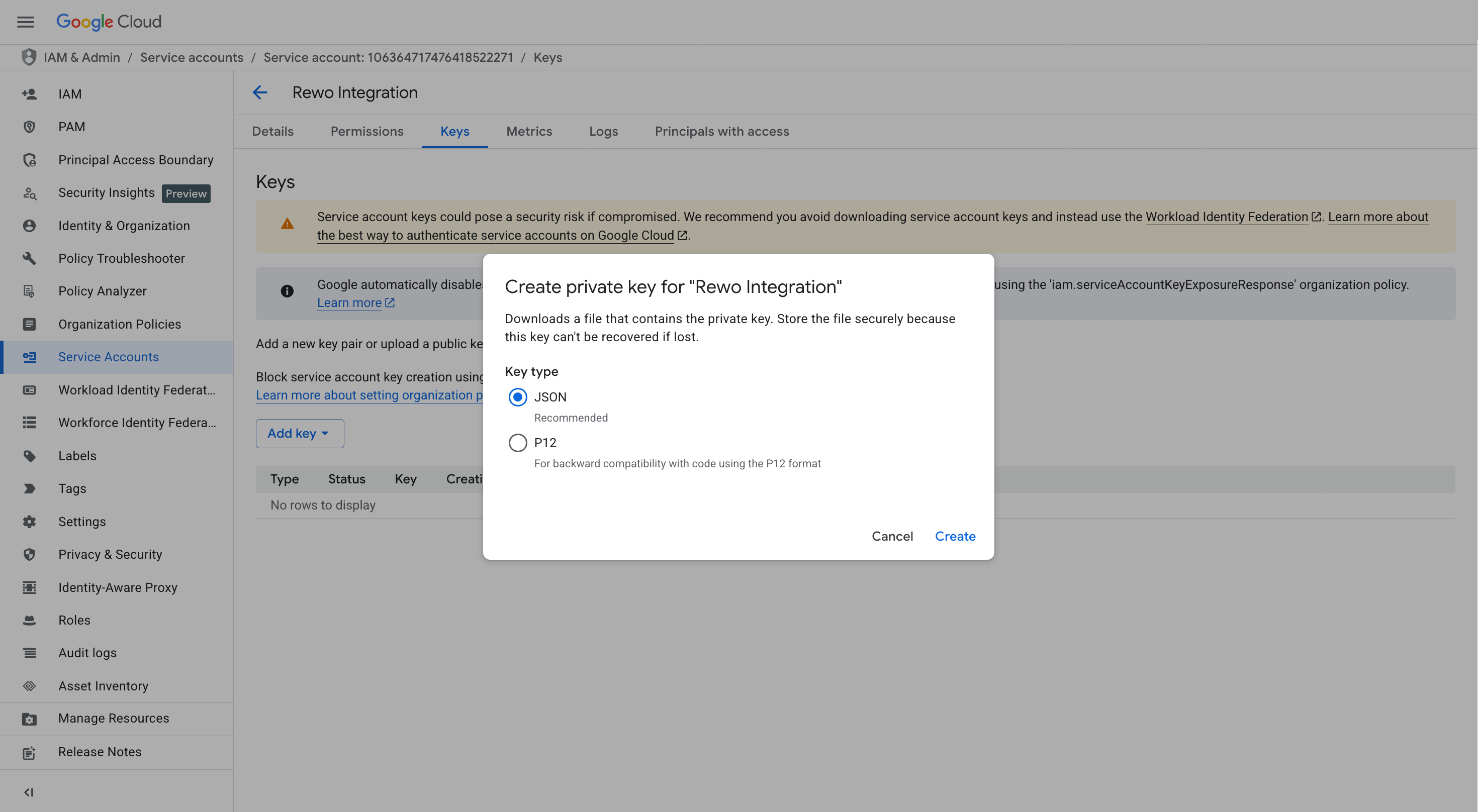
- Select the Keys tab, click Add Key > Create new key.
- Choose JSON and click Create. This will download a
.jsonfile.
4. Link to Google Play Console
-
Log in to the Google Play Console.
-
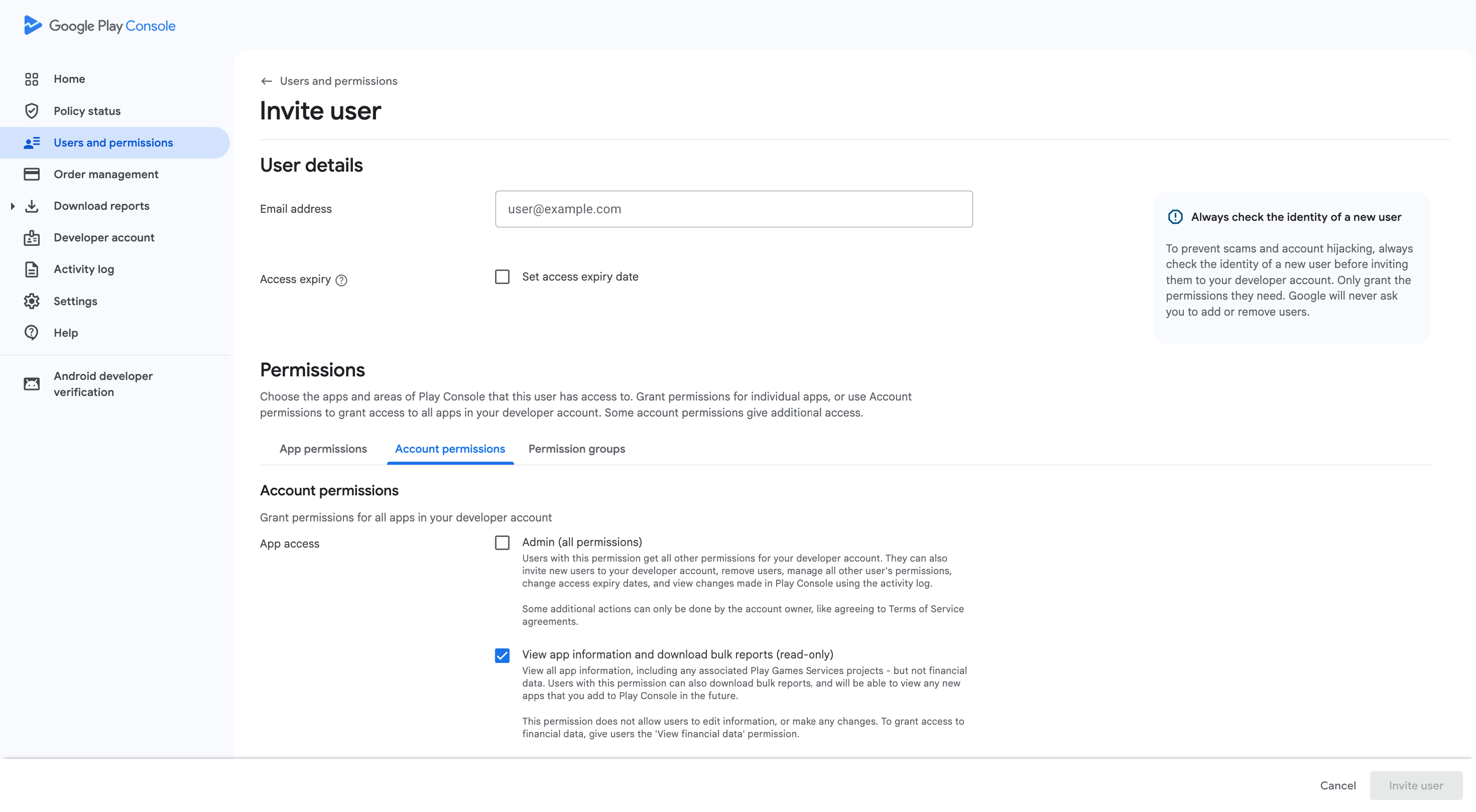
Go to Users and permissions > Invite new user.
-
Under Email address, enter the email of the service account you created.
-
In the Account permissions tab, ensure the following two items are selected:
- App access -> View app information and download bulk reports (read-only). This allows us to access the archive files in the Reports section of your Console account and obtain historical review data.
- User feedback -> Reply to reviews. This allows us to access the most recent reviews via API so you can reply from within Rewo.
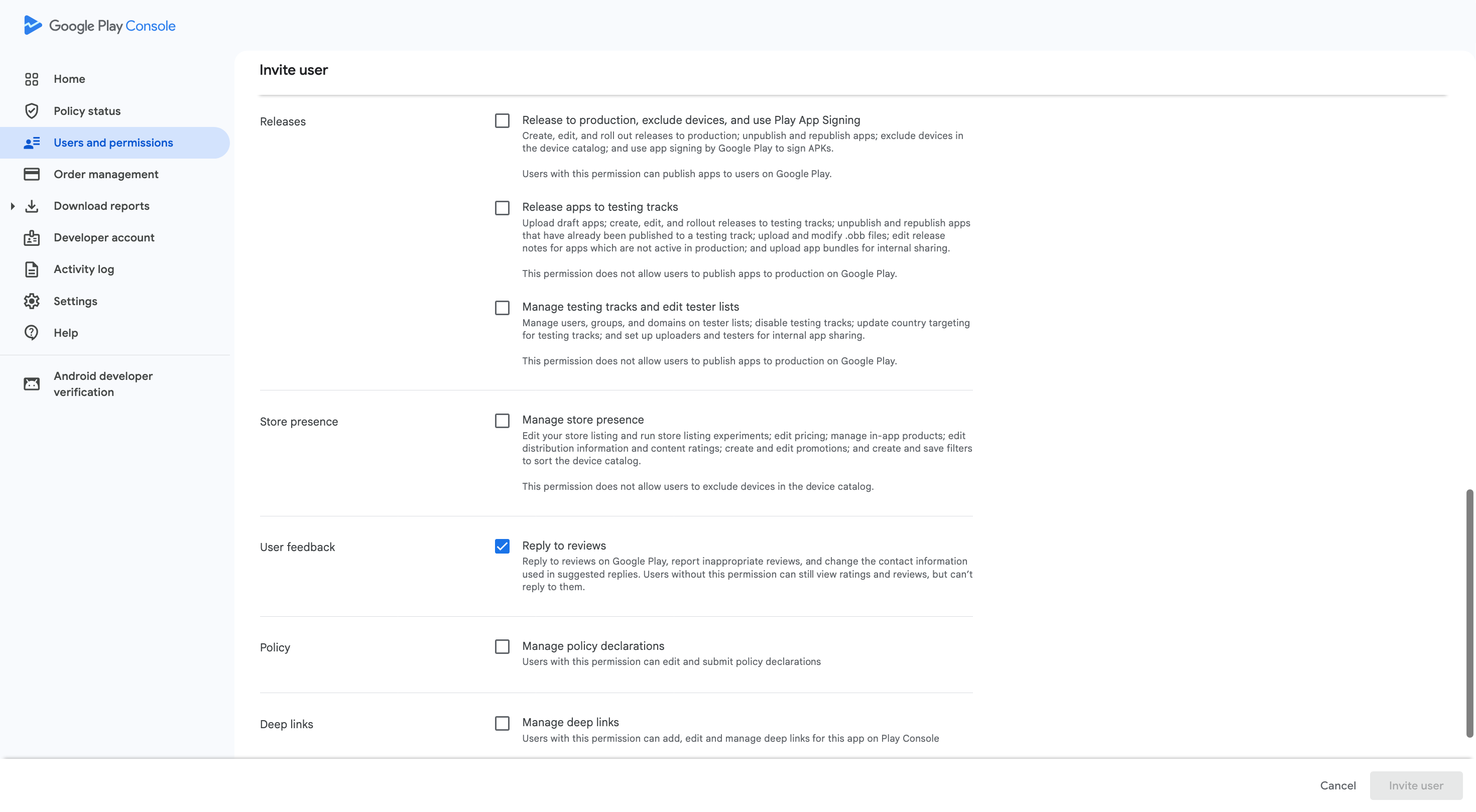
- Click Invite user.
It may (and likely will) take up to 24 hours for the permissions to take effect. Please wait 24 hours before proceeding with the Google Play Store provider setup.
6. Copy Bucket ID (optional)
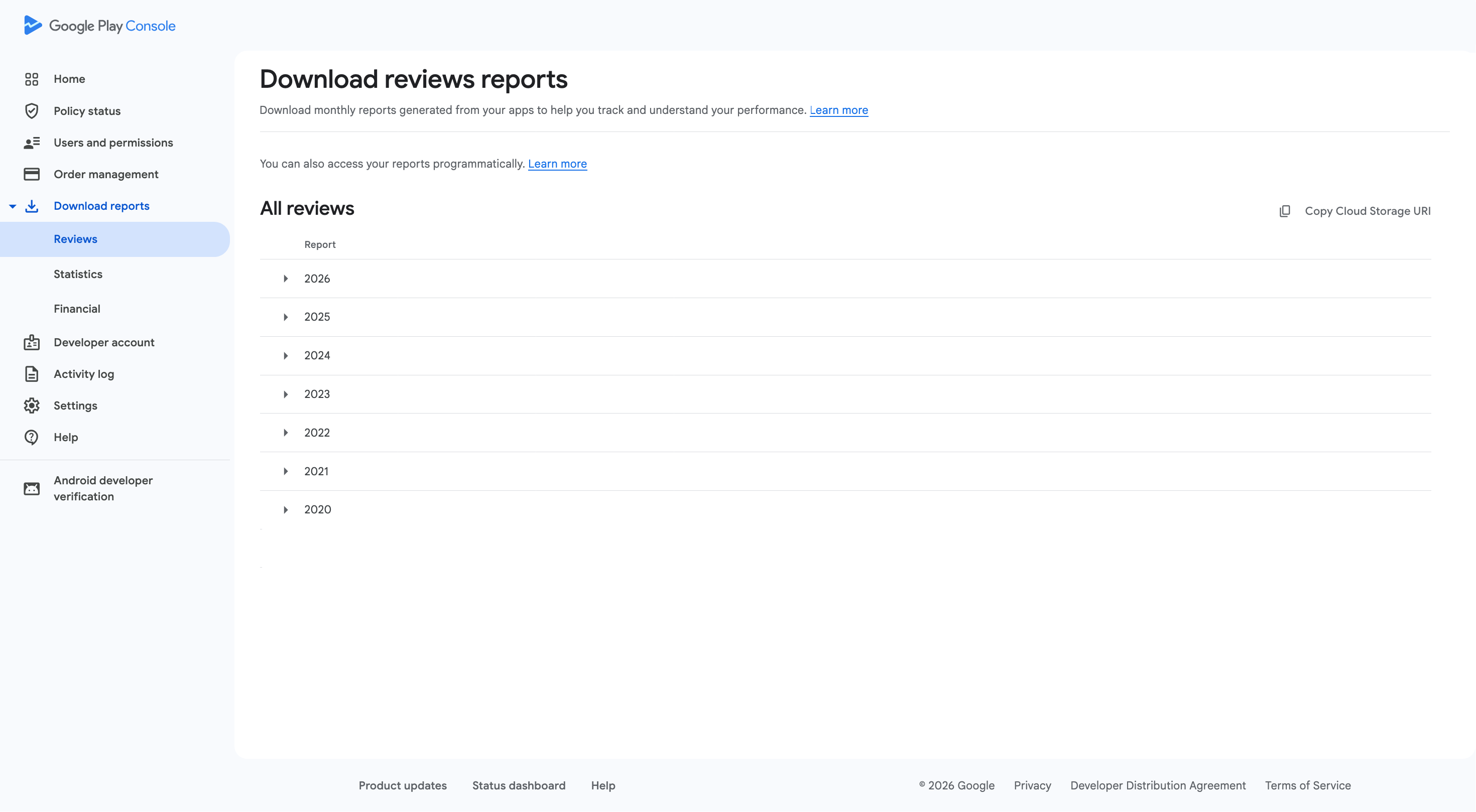
To allow full ingestion of all historic review, not just the publicly available reviews, go to Download reports -> Reviews and click Copy Cloud Storage URI. This will copy your Bucket ID to clipboard, ready to paste into the setup form in Rewo in the next step.
5. Setup in Rewo
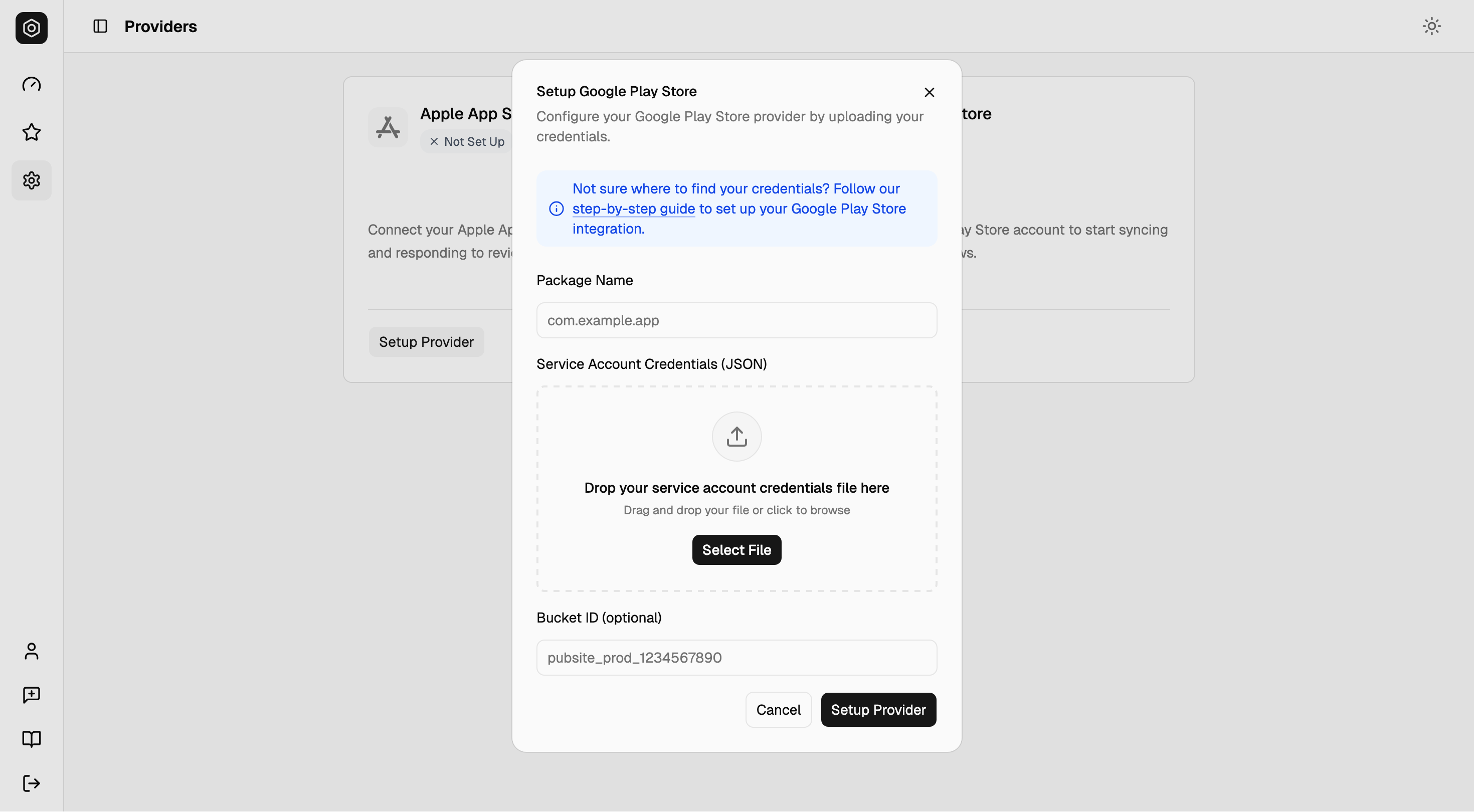
Once you completed these steps, upload the JSON file together with your Android Package Name and (optionally) your Bucket ID under Settings > Providers > Google Play Store in Rewo.
Security & Data Protection
We take your credentials seriously. Here’s how we keep them safe:
- Encrypted Everywhere: Credentials are encrypted in transit, encrypted at rest (on storage and when the database is offline), and additionally encrypted within the database itself using monthly rotated keys.
- No Human Access: Decrypted credentials are only ever handled by the system in memory, never accessible to anyone.
- Internal Use Only: Credentials stay within our infrastructure and are never shared with third parties.
- Certified & Compliant: We operate on industry-standard certified infrastructure and follow GDPR and security best practices.
Common Issues
Missing or Expired Developer Agreements (Apple App Store)
Apple App Store credentials may be rejected if there are missing or expired developer agreements in your account. If this happens, Rewo will notify you that your credentials have become invalid.
To resolve this:
- Log in to App Store Connect and accept any pending or updated agreements.
- Return to Rewo and re-enable the provider.
Partial Sync of Reviews (Google Play Store)
If you notice that Rewo shows fewer reviews than displayed on the Google Play Store this is expected behavior due to technical limitations on Google's side. Google limits the total number of historical reviews accessible to external tools. This means that while Rewo retrieves as many reviews as possible, many older reviews may remain inaccessible. You can navigate around this by providing your bucket ID so Rewo can ingest reviews from the Google Play Store archive files, too.
This is not an error, but a platform-level restriction. Rest assured that all new incoming reviews will sync automatically as they arrive.
Invalid Configuration / Invalid Credentials (Google Play Store)
Full propagation of permissions to access your data in Google Play Store may take up to 24 hours. As such, if you continue with the setup within Rewo too soon, you may receive one of the two notifications below. In either case, ensure you carefully revisit the integration steps to ensure you have done everything correctly, and make sure to wait for the full 24 hours..
- Invalid Credentials - Syncronization is not working. To resolve within Rewo simply re-upload valid credentials.
- Invalid Configuration - Syncronization is working, however Rewo was unable to access you storage bucket. Since ingesting reviews from archive files is optional, simply re-save the Google Play Store provider and Rewo will try again.
Alpha / Beta (Testing) Feedback (Google Play Store)
Please note that the Google Play Developer API only provides access to reviews submitted on the Production track. Feedback submitted by testers on Alpha, Beta, or internal testing tracks is not available through the API.
Good To Know
Translations & Tags
Rewo automatically generates translations for non‑English reviews and applies tags when auto‑tagging is enabled. These processes run only for reviews within the review monitoring window (typically reviews updated in the last 30 days). Reviews outside this window may not receive translations or tags, but you can request auto-tag assignment from the dashboard.